Achraf Ben Alaya
No Result
View All Result
  • Home
  • News
  • Blog
    • blazor
    • c#
    • Cloud
      • Azure
    • docker
    • sql
    • xamarin
    • Dapr
    • Tricks, Tips and Fixes
    • General Tips & Fix
  • AI
  • Cloud
  • Motivation
  • Courses
  • About
    • Resume
    • Privacy Policy
SUBSCRIBE
  • Home
  • News
  • Blog
    • blazor
    • c#
    • Cloud
      • Azure
    • docker
    • sql
    • xamarin
    • Dapr
    • Tricks, Tips and Fixes
    • General Tips & Fix
  • AI
  • Cloud
  • Motivation
  • Courses
  • About
    • Resume
    • Privacy Policy
No Result
View All Result
Achraf Ben Alaya
No Result
View All Result
ADVERTISEMENT
Home Blog docker

Installing WordPress with docker image of XAMPP

achraf by achraf
April 21, 2020
in docker
2 min read
0
Installing WordPress with docker image of XAMPP
0
SHARES
1.2k
VIEWS
Share on FacebookShare on Twitter

Hi everyone ! ,

Today , in this new article we are going to see how to install wordpress on local machine, using xampp server from a docker image .

First step we are going to pull an image of xampp from docker hub , for that I have found this docker image , You can download it using this command from your power shell or your favorite command tool :

https://hub.docker.com/r/tomsik68/xampp/

while your pulling this image from docker hub , you can in same time , download word press from the official website the version that exist right now , while i’m writing this article is version : 5.2.2 .

After all is done , now let’s see our image and run it .

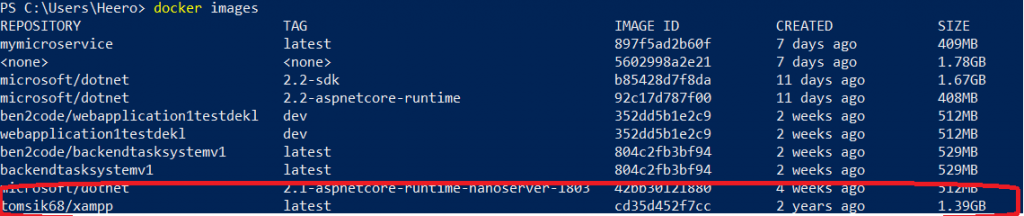
To see our image we simply type : docker images and if you have been using docker for a while , you will have a couple of images like I do in picture below .
 

docker

docker run –name myXampp -p 41061:22 -p 41062:80 -d -v C:\Users\Heero\Downloads\Compressed\wordpress-5.2.2\wordpress:/www tomsik68/xampp


Now let’s understand this command .

The command above will expose the SSH server on port 41061 and HTTP server on port 41062.

one thing you should do is , to replace the directory where you have downloaded wordpress, for me

C:\Users\Heero\Downloads\Compressed\wordpress-5.2.2\wordpress , so in the command you should :

docker run –name myXampp -p 41061:22 -p 41062:80 -d -v Your directory :/www tomsik68/xampp

After you run the command , by typing : docker ps you will see your working container :

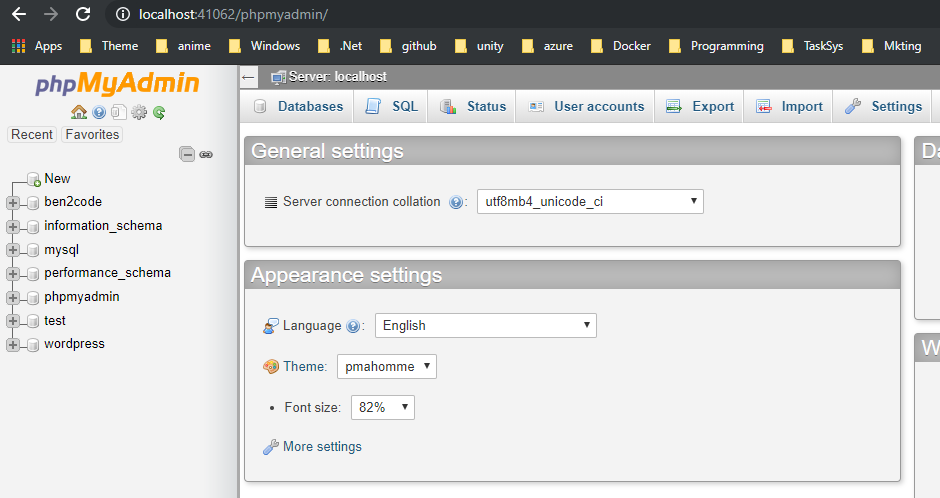
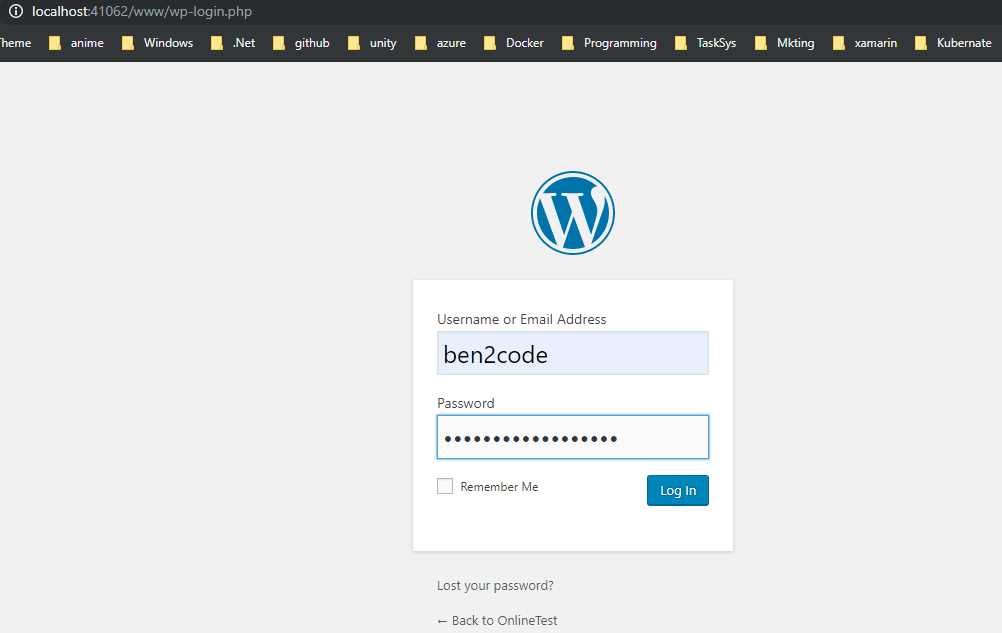
To connect to your web page, visit this URL: http://localhost:41062/www

And to open up the XAMPP interface:  http://localhost:41062/
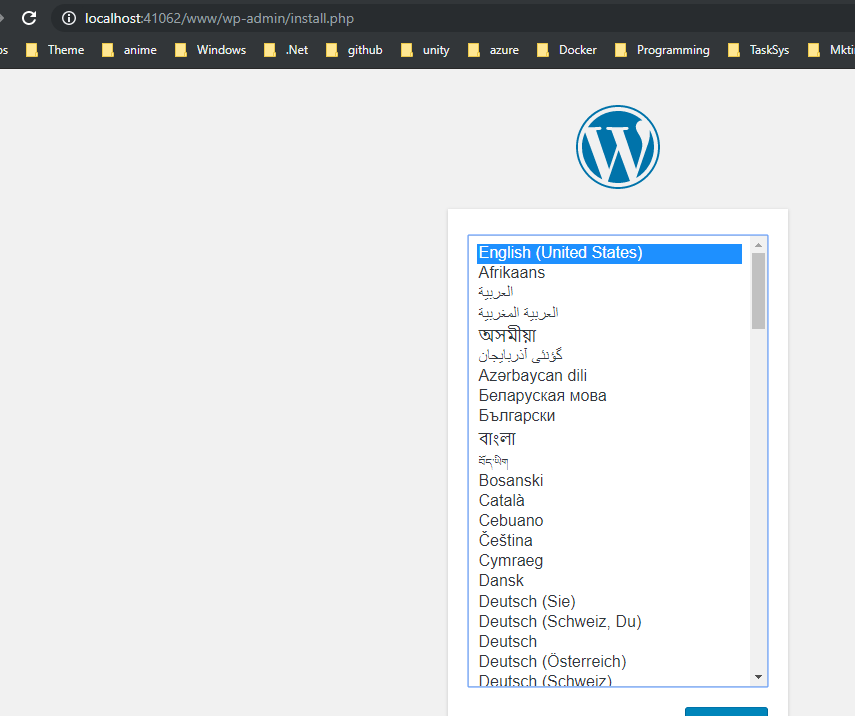
 

Now one more free tip , if you try to install a plugin you will get an error .

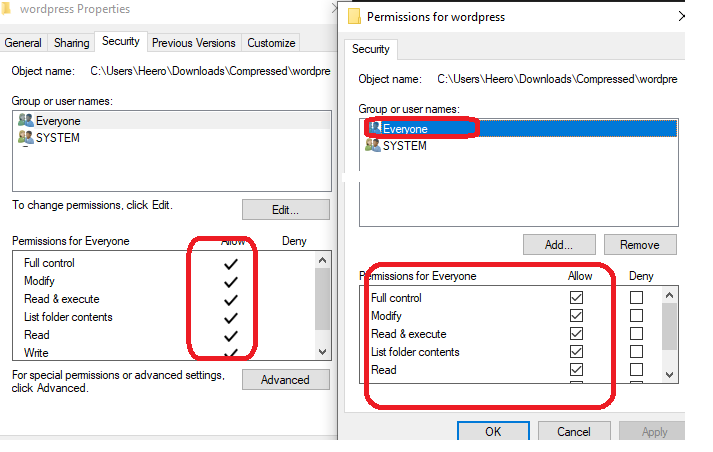
WordPress will be asking for FTP credentials on localhost and for that , there is a fix in 2 steps .

config.php

define(‘FS_METHOD’,‘direct’);

Directory

now we need to change the permission in our installation folder to “Read & Write” for everyone :
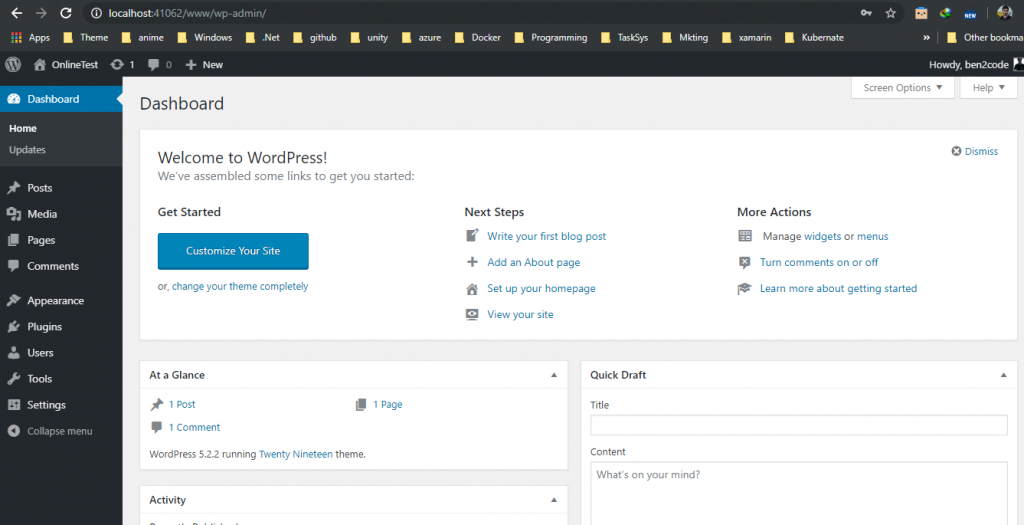
Now , you are ready to go and to use your WordPress site and start publishing your articles !

Happy WordPress day 🙂

ShareTweet
Previous Post

How To Send Mail Using SQL Server

Next Post

Finally a stable version of Xamarin.Forms 4.1.0 and announcing Xamarin.Essentials 1.2

Related Posts

Streamlining Website Editing on My Local Machine with Docker Compose and WordPress
Blog

Streamlining Website Editing on My Local Machine with Docker Compose and WordPress

July 1, 2023
193
How to setup nginx reverse proxy for aspnet core apps with and without  Docker compose
Azure

How to setup nginx reverse proxy for aspnet core apps with and without Docker compose

November 23, 2022
2.2k
Deploy azure function from Docker Hub CI/CD
Azure

Deploy azure function from Docker Hub CI/CD

April 27, 2020
368
Next Post
Finally a stable version of Xamarin.Forms 4.1.0 and announcing Xamarin.Essentials 1.2

Finally a stable version of Xamarin.Forms 4.1.0 and announcing Xamarin.Essentials 1.2

Leave a Reply Cancel reply

Your email address will not be published. Required fields are marked *

Terraform

Certifications

Microsoft certified trainer (MCT)

Recommended

Microsoft Ignite Cloud Skills Challenge March 2021

Microsoft Ignite Cloud Skills Challenge March 2021

March 2, 2021
810

Log Analytics Workspace Chaos: How We Tamed 100+ Orphaned Workspaces

October 17, 2025
210
Goodbye my lover Xamarin, Hello MAUI!

Goodbye my lover Xamarin, Hello MAUI!

September 25, 2020
616
My book collection for 2020-2021

My book collection for 2020-2021

December 28, 2020
604
Migrate and modernize your applications on Azure – Part –1 (Migrate Database)

Migrate and modernize your applications on Azure – Part –1 (Migrate Database)

April 3, 2021
348
Migration from Asp.Net Core 3.1 to 5.0 and publish to azure

Migration from Asp.Net Core 3.1 to 5.0 and publish to azure

November 12, 2020
858
Facebook Twitter LinkedIn Youtube

 2025 – Certifications, Community, and 50K Views

December 28, 2025

From Manual Terraform to AI-Assisted DevOps: Building an Azure Container Platform (Part 1)

December 23, 2025

Build and Host an Expense Tracking MCP Server with Azure Functions

November 2, 2025

Categories

  • AI (3)
  • Apps (1)
  • Azure (67)
  • blazor (2)
  • Blog (94)
  • c# (7)
  • Cloud (69)
  • Courses (4)
  • Dapr (4)
  • docker (4)
  • Games (1)
  • General Tips & Fix (1)
  • Home (1)
  • Kubernetes Service (AKS) (1)
  • motivation (2)
  • Motivation (3)
  • News (9)
  • Resume (1)
  • sql (4)
  • Terrafrom (2)
  • Tricks, Tips and Fixes (4)
  • xamarin (5)
No Result
View All Result
  • Home
  • News
  • Blog
    • blazor
    • c#
    • Cloud
      • Azure
    • docker
    • sql
    • xamarin
    • Dapr
    • Tricks, Tips and Fixes
    • General Tips & Fix
  • AI
  • Cloud
  • Motivation
  • Courses
  • About
    • Resume
    • Privacy Policy