In Part 1, we established a secure baseline: a VNet with NSGs, centralized logging, an Application Gateway as our public entry point, and a single frontend Container App behind an internal load balancer. Everything was locked down no direct internet access to the Container App, all traffic flowing through the Application Gateway.
Part 2 evolves that single-app deployment into a proper microservices architecture. We’re adding three things: a container registry to store our images, a backend API that only the frontend can reach, and the wiring between them.
By the end of this tutorial, the architecture looks like this:
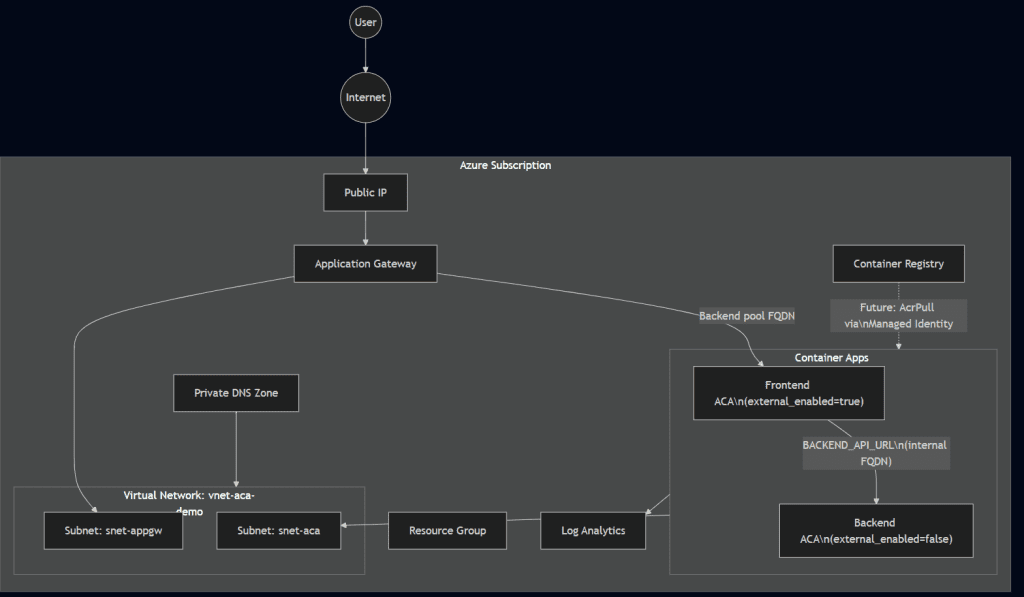
Internet → App Gateway → Frontend ACA → (internal FQDN) → Backend ACA
↑
Only reachable inside the
Container App Environment
Prerequisites
You need Part 1 deployed and running. Specifically, your Terraform state should contain these resources: `azurerm_container_app_environment.env`, `azurerm_container_app.app`, and `random_string.suffix`. If you’re starting fresh, deploy Part 1 first.
Tools required: Terraform >= 1.8.0, Azure CLI, and an Azure subscription with permissions to create container registries and container apps.
What we’re building
Three resources, each with a specific role in the Zero Trust model:
Azure Container Registry (ACR) a private registry to store container images. We’re using Standard SKU with admin access disabled. No static credentials, no shared passwords. In Part 3, we’ll wire this up with Managed Identities so our Container Apps can pull images using RBAC instead of admin keys.
Backend Container App an internal-only API service. The critical setting here is `external_enabled = false` on the ingress block. This isn’t just “not public” it means the backend has no ingress from outside the Container App Environment. Not from the VNet, not from the Application Gateway, not from the internet. Only sibling apps running in the same environment can resolve its internal FQDN.
Frontend Container App (updated) the existing frontend gets a new environment variable (`BACKEND_API_URL`) pointing to the backend’s internal FQDN. This is how the frontend discovers the backend at runtime, without hardcoding addresses.
Step 1 Create the Azure Container Registry
Create a new file called `acr.tf` in your project root:
resource "azurerm_container_registry" "acr" {

  name                = "acr${random_string.suffix.result}"

  resource_group_name = azurerm_resource_group.rg.name

  location            = azurerm_resource_group.rg.location

  sku                 = "Standard"

  admin_enabled       = false

}
A few things to note about this block.
The name uses the same `random_string.suffix` from Part 1, which gives us a globally unique name like `acrab3k2m`. ACR names must be 5–50 characters, alphanumeric only our 9-character name fits comfortably.
We chose Standard SKU deliberately. Basic lacks support for Private Endpoints (which we’ll need in Part 3 to lock down the registry to VNet traffic only) and has limited throughput. Premium adds geo-replication and content trust, but that’s overkill for this stage.
Setting `admin_enabled = false` is the Zero Trust play. The admin account is a single shared username/password that never rotates and can’t be scoped. By disabling it, we force all image pulls to go through Azure RBAC. In Part 3, we’ll create a Managed Identity for each Container App and assign the `AcrPull` role no credentials to store, rotate, or leak.
Step 2 Add the internal backend Container App
In your existing `aca.tf`, add the backend resource *before* the frontend (since the frontend will reference it):
resource "azurerm_container_app" "backend" {

  name                         = "ca-backend-api"

  container_app_environment_id = azurerm_container_app_environment.env.id

  resource_group_name          = azurerm_resource_group.rg.name

  revision_mode                = "Single"

  workload_profile_name        = "Consumption"

  template {

    container {

      name   = "backend-api"

      image  = "mcr.microsoft.com/azuredocs/containerapps-helloworld:latest"

      cpu    = 0.25

      memory = "0.5Gi"

    }

    min_replicas = 1

    max_replicas = 3

  }

  ingress {

    external_enabled = false

    target_port      = 80

    transport        = "auto"

    traffic_weight {

      latest_revision = true

      percentage      = 100

    }

  }

}
The image is a placeholder we’re using Microsoft’s hello-world image until Part 3, when we’ll push our own images to ACR and reference them via `${azurerm_container_registry.acr.login_server}/backend:latest`.
The `external_enabled = false` line is the most important setting in this entire tutorial. When set to `false`, Azure’s control plane never provisions a public-facing load balancer rule for this app. The backend gets an internal FQDN that follows this pattern:
“`
ca-backend-api.internal.<container-app-environment-default-domain>
“`
That FQDN resolves only within the Container App Environment’s internal DNS. If you try to `curl` it from your local machine, from a VM in the same VNet, or even from the Application Gateway it won’t resolve. Only apps running inside the same Container App Environment can reach it. This is platform-level isolation, not just network-level.
Step 3 Wire the frontend to the backend
Update the existing `azurerm_container_app.app` resource in `aca.tf`. The only change is adding an `env` block inside the `container` block:
resource "azurerm_container_app" "app" {

  name                         = "ca-hello-world"

  container_app_environment_id = azurerm_container_app_environment.env.id

  resource_group_name          = azurerm_resource_group.rg.name

  revision_mode                = "Single"

  workload_profile_name        = "Consumption"

  template {

    container {

      name   = "hello-world"

      image  = "mcr.microsoft.com/azuredocs/containerapps-helloworld:latest"

      cpu    = 0.25

      memory = "0.5Gi"

      env {

        name  = "BACKEND_API_URL"

        value = "http://${azurerm_container_app.backend.ingress[0].fqdn}"

      }

    }

    min_replicas = 1

    max_replicas = 3

  }

  ingress {

    external_enabled = true

    target_port      = 80

    transport        = "auto"

    traffic_weight {

      latest_revision = true

      percentage      = 100

    }

  }

}
We’re using `http://` (not `https://`) for the `BACKEND_API_URL`. This is intentional. Internal ACA-to-ACA traffic within the same environment doesn’t terminate TLS at the Envoy sidecar by default. If you sent `https://`, the request would fail certificate validation because there’s no managed certificate on the internal FQDN. Use `https://` only if you’ve configured a custom domain with a managed cert on the backend.
Terraform creates an implicit dependency here: the frontend resource depends on the backend resource (because it references `azurerm_container_app.backend.ingress[0].fqdn`). This means Terraform will always create the backend first, which is exactly the ordering we want.
Step 4 Add outputs
In `main.tf`, add these two outputs after the existing ones:
output "acr_login_server" {

  value       = azurerm_container_registry.acr.login_server

  description = "ACR login server used as image prefix in container definitions"

}

output "backend_app_fqdn" {

  value       = azurerm_container_app.backend.ingress[0].fqdn

  description = "Internal FQDN of the Backend Container App (resolvable only within the CAE)"

}
The `acr_login_server` output gives you the hostname (e.g., `acrab3k2m.azurecr.io`) that you’ll use in Part 3 to tag and push images. The `backend_app_fqdn` output is useful for debugging you can verify the internal FQDN pattern and confirm it matches what the frontend receives in its environment variable.
Step 5 Plan and apply
terraform plan -out=tfplan

terraform apply tfplan
Expected changes: 2 new resources (ACR + backend ACA), 1 modified resource (frontend ACA with new env var). The Container App Environment, Application Gateway, and all networking resources remain unchanged.
After apply, verify the outputs:
terraform output acr_login_server

terraform output backend_app_fqdn
The `backend_app_fqdn` should look something like `ca-backend-api.internal.cae-internal-demo.westeurope.azurecontainerapps.io`.
## Updated architecture
Here’s how the architecture looks after Part 2:
What changed from Part 1
| Component | Part 1 | Part 2 |
|---|---|---|
| 🧩 Container Apps | 1 (frontend only) | 2 (frontend + internal backend) |
| 📦 Container Registry | None | Standard SKU, admin disabled |
| ⚙️ Frontend Config | Static image, no env vars | BACKEND_API_URL injected |
| 🔒 Backend Ingress | N/A | external_enabled = false (internal only) |
| 📤 Outputs | 5 (gateway IP, frontend FQDN, URL, static IP, DNS zone) | 7 (+ ACR login server, backend FQDN) |
| 📁 New Files | — | acr.tf |
Security posture
Part 2 adds two important Zero Trust controls.
First, the backend is platform-isolated. Setting `external_enabled = false` isn’t the same as putting a deny rule in an NSG. NSG rules operate at the network layer and can be misconfigured, have priority conflicts, or get accidentally modified. The `external_enabled = false` setting is enforced by the Azure Container Apps control plane it never provisions the external load balancer rule. There’s no network path to misconfigure.
Second, the ACR has no admin credentials. There’s no username/password to steal, share, or accidentally commit to a repo. When we connect ACR to the Container Apps in Part 3, it will be through Azure RBAC and Managed Identities ephemeral, automatically rotated, least-privilege tokens.
What’s next in Part 3
Part 3 will close the loop with CI/CD and identity:
– Managed Identities : System-assigned identities on each Container App, with `AcrPull` role assignments to pull images from ACR without any credentials.
– GitHub Actions : CI/CD pipelines that build, push to ACR, and update Container App revisions.
– Full automation : From `git push` to production deployment with no manual steps.
The foundation we’ve built in Parts 1 and 2 internal networking, platform-level isolation, RBAC-ready registry makes Part 3 a matter of wiring, not rearchitecting.
This is Part 2 of a full series on building production-ready microservices on Azure Container Apps with Terraform. Part 1 covers the secure networking baseline.